
Contributing
Welcome to the NEMI Documentation project. This document will help you contribute to this repository.
Wiki Structure
- The wiki is organized into chapters. Each chapter begins with a heading number. The numbering system, visible in the sidebar is intuitive.
- Chapters can be split into sub-chapters if needed. As described in the GitLab documentation:
You can specify a full path for the wiki page by using ‘/’ in the title to indicate subdirectories. Any missing directories will be created automatically. For example, a title of
docs/my-pagewill create a wiki page with a path/wikis/docs/my-page.
- Due to the way in which GitLab organizes its Wiki into folders, its is necessary to create a page with the same title as the folder it represents, if this folder is intended to indicate the start of a new chapter. Take a look at the side bar structure for the organization of the
03 Piperchapter. - It is important that you leave a blank line at the end of each wiki page. This helps the
pandoctool to generate the HTML page seamlessly with the correct page breaks and heading structures. - If you have any doubts, take a look at how the other pages are structured and written.
Contribution Workflow
Text only contributions
- Edits and additions can be carried out directly wit the Wiki online editor, if they pertain only the textual contributions. You just need to ensure that a blank line is kept at the end of the page.
Adding Images / Attachments
NOTE: Ensure that you have a GitLab account, configured with your SSH keys
- Adding images to the Wiki requires a bit more effort than the usual approach of
drag & dropor uploading a picture to the page. This is because GitLab wiki uploads all the page attachment to a folder calleduploadwith the following structureupload/timestampedkey/<filename.ext>. This approach is not suitable for the automated document HTML docs generation which requires all images to be available under theimagesfolder.
-
Clone the repository to your favourite location. If you have already cloned repository,
git pullto ensure that your repository is up to date.// clone over SSH $ git clone git@gitlab.fokus.fraunhofer.de:nemi/documentation.wiki.git $ cd documentation.wiki -
Make changes and review thoroughly. Follow the naming conventions for the chapter names.
-
Add the figures to the
imagesfolder and cross-reference them in your text. -
Commit and push the changes.
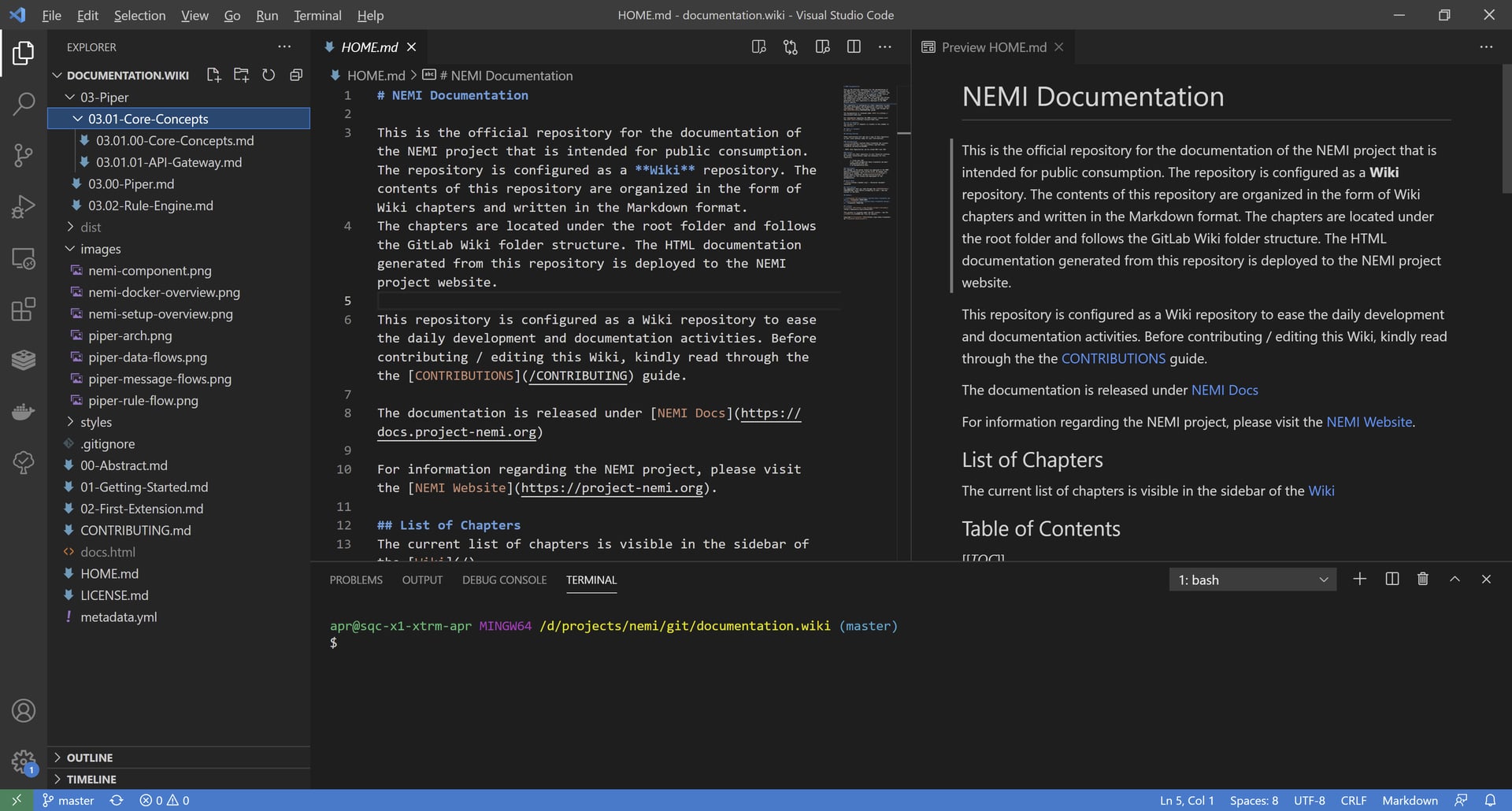
NOTE: If you are using VS Code, its easier to preview your markdown as your provide your contributions
Reporting Issues
Use the Issue tracker when you encounter some issues or would like to report on something.